Adding a new page
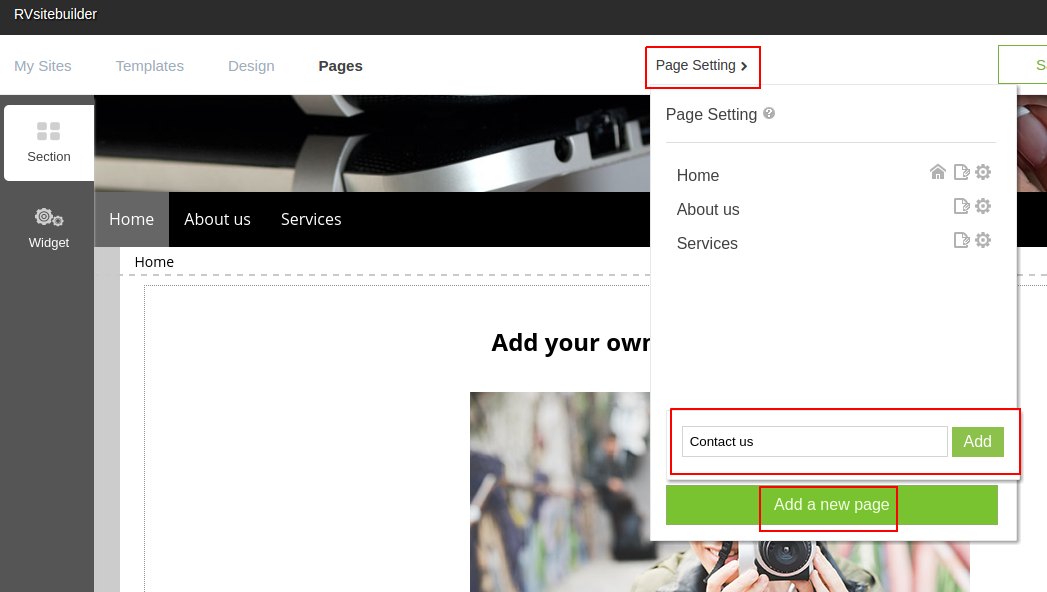
Go to Pages tab > Page setting > Click Add a new page > set your page name and click Add. Then RVsitebuilder will open a new page editor for your ready to continue.
Rearranging Pages
At Page Setting menu, place your cursor to the back of the page title then your cursor will change to the arrows, drag and drop the page up or down to rearrange.
Making a page to a subpage
At Page Setting menu, drag the page you want to the right to drop it as a sub-page. Or drag and it to the left to drop it as as the main page.
Deleting Page
You can use option Delete option under "Page Setting" menu, on the page setting tools after the page name you want.
Please be noted that it won't have Delete and Hide from Navigation options On the page that you're currently editing.
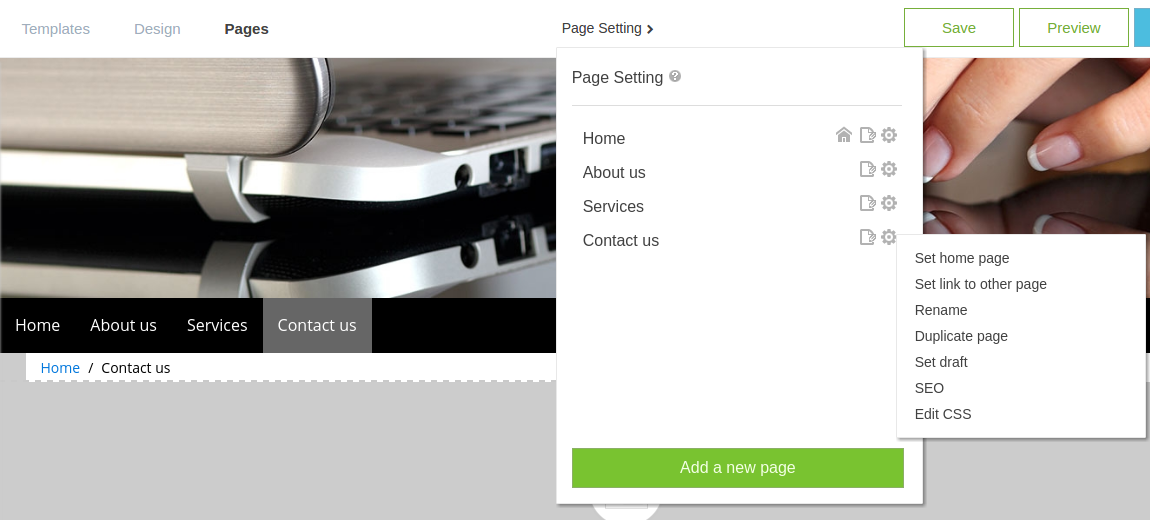
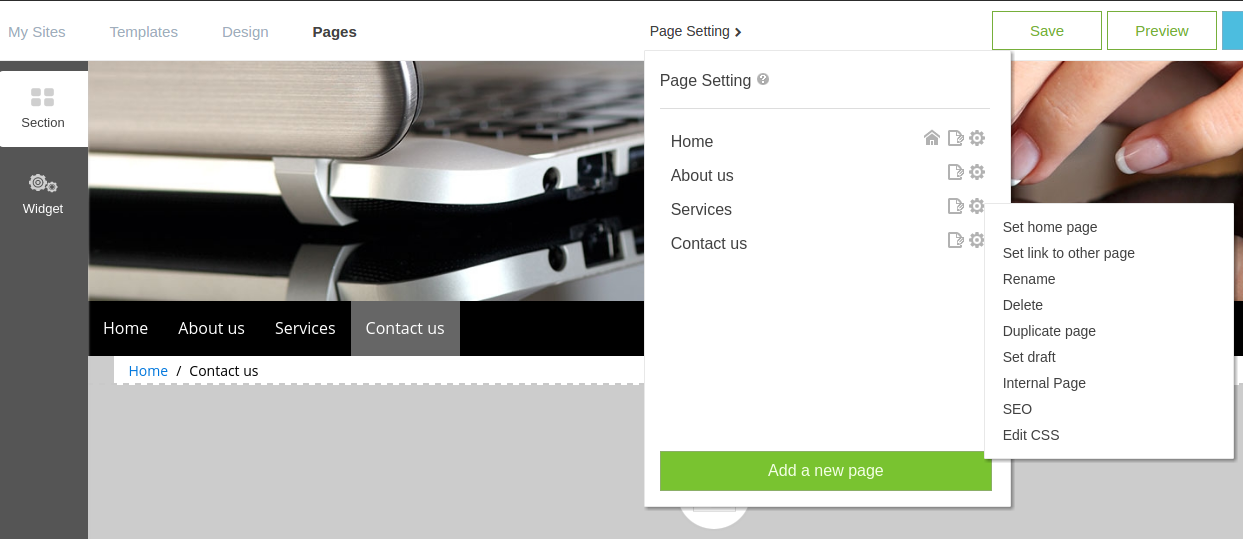
Apart from those, all options are available to make the page to "Set as home", "Set link to anotehr page", "Rename", "Delete", "Duplicate page", "Set as draft", "Set as internal page", "SEO", "Edit CSS"