

Creating your own image folders in Image Manager
by
RV Support
2025-11-25 08:01:34
You can create your own image folders to categorize images in Image Manager, under "My Images". At “+ New Folder“, click it to open Folder name field, and name it as you want.
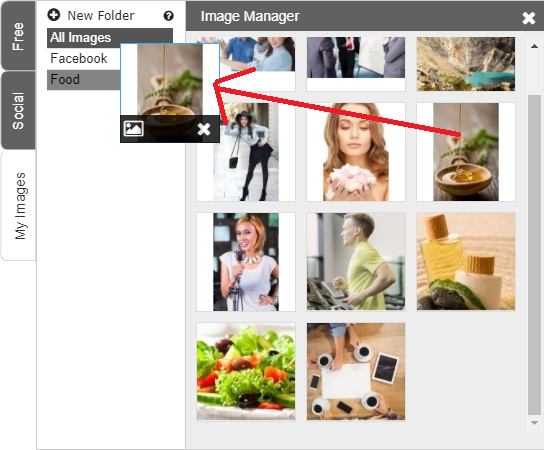
To move images from All Images to your own created folder, just simply drag and drop it. You can also select multi images in one time by dragging the mouse over them and dropping to the destination folder.
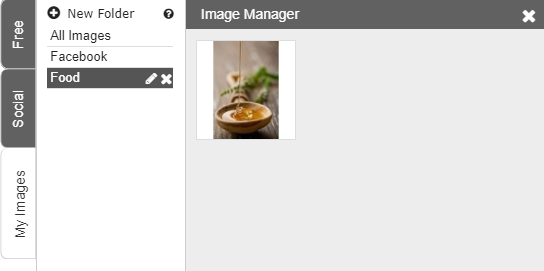
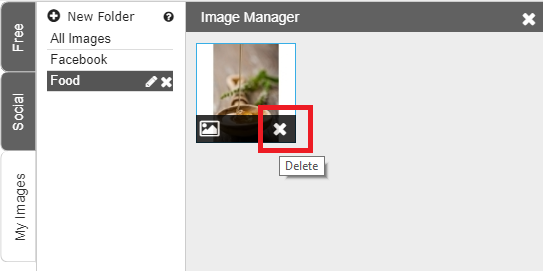
**To delete the image(s) from your created folder, please MOVE image from the folder to “All Images”. And please be noted that the “Delete” function will mean to delete it from Image Manager and your website, not only from the folder. So make sure you remove it from page in website to avoid broken image displaying after republishing.
===========
Articals in this section
-
Make a Bookmark on your page
Updated on 2025-11-18 08:04:58
-
How to add a cookie and privacy banner on RVSB 6?
Updated on 2025-11-18 08:04:58
-
How to check your RVsitebuilder version?
Updated on 2025-11-18 08:04:58
-
How to select language on RVsitebuilder program
Updated on 2025-11-18 08:04:58
-
Added a feature for generating “Privacy Policy” page in RVsitebuilder version 6
Updated on 2025-11-18 08:04:58
-
Adding new page, Rearrange page name on Navigation
Updated on 2025-11-25 08:01:37
-
Adding Paypal widget
Updated on 2025-11-25 08:01:35
-
Adding Section
Updated on 2025-11-25 08:01:35
-
Copy an image from external
Updated on 2025-11-25 08:01:35
-
Create a website with RVsitebuilder 6
Updated on 2025-11-25 08:01:35
