

Your Own Header Banner in Step 2
Every template will have a current header banner image itself, but you can remove the current, add your own, make banner slideshow.
At Step 2, find “Header Banner”, and click “+ Add Image”.
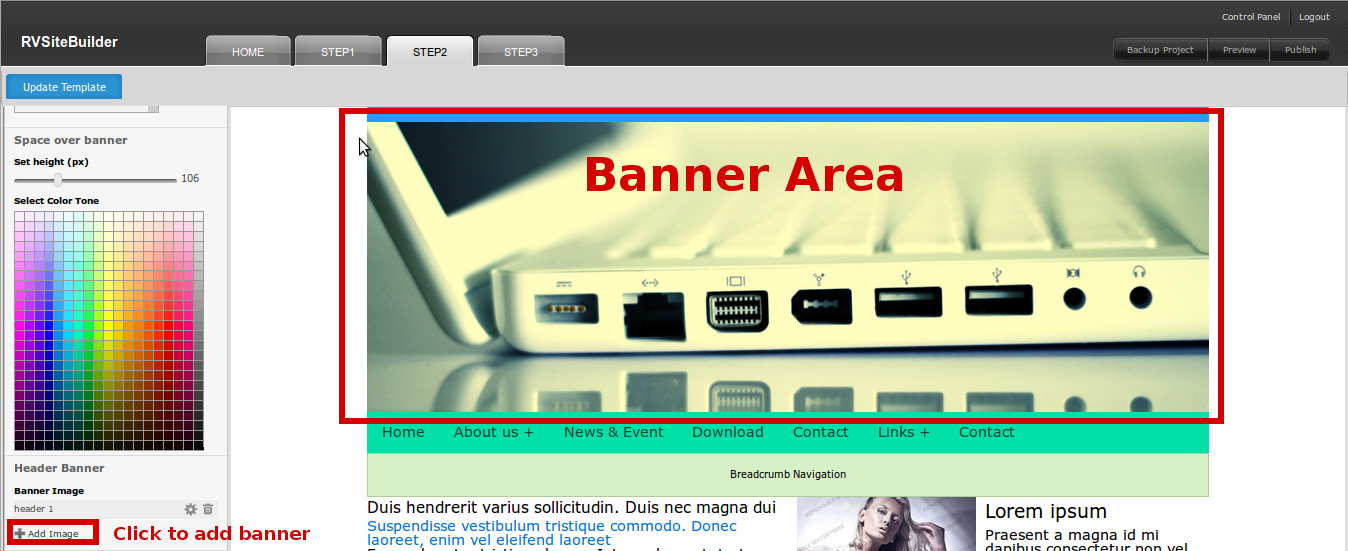
Simply click “Add Image”, the upload window will promptly appears to add your own banner image. You can add more than one image in order to make your header banner a slideshow.
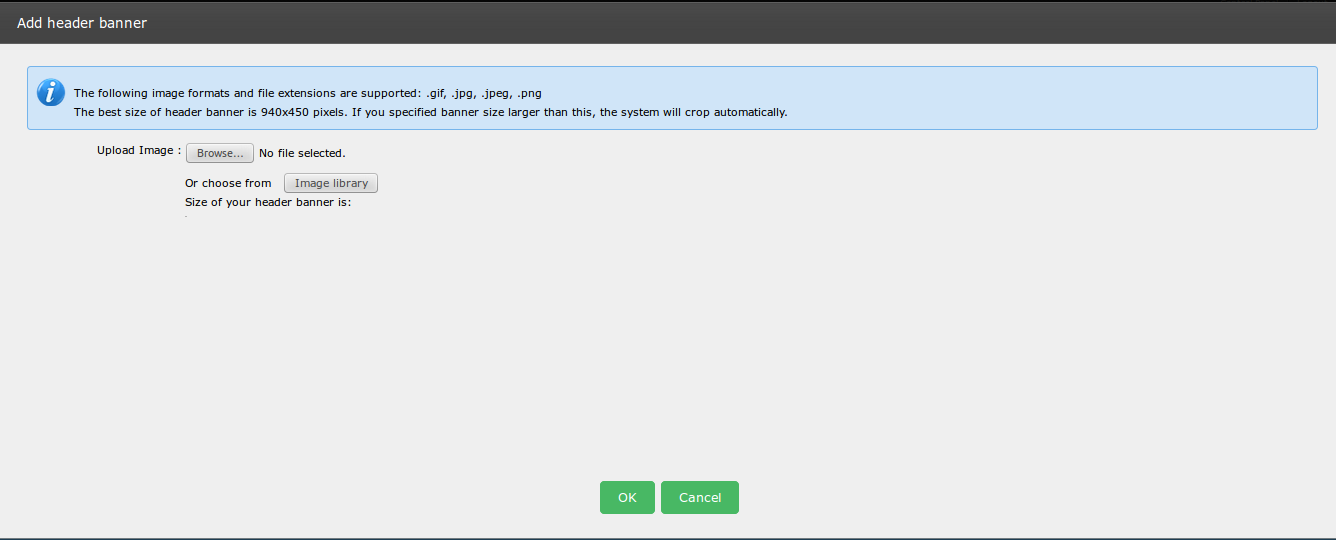
“Browse” your own image from computer or choose one from the “Image Library”, and use drag-and-drop tool to crop the size as you want.
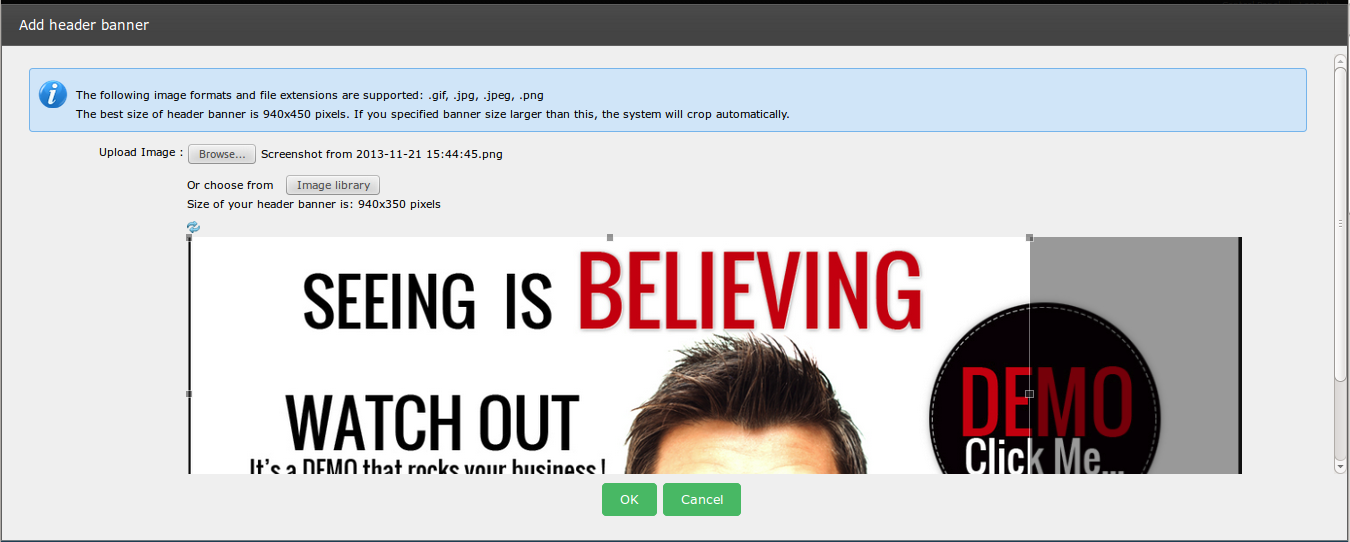
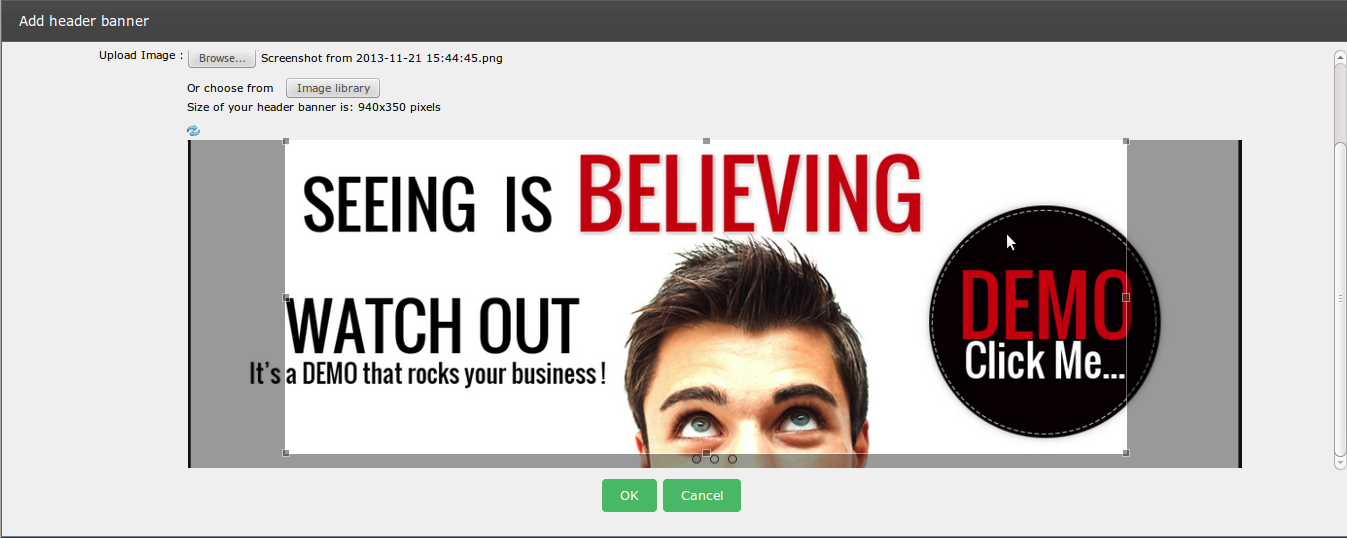
Everything you did in Step 2 , please don't forget to save by "Update Template" button at the top of step2.
Got it!
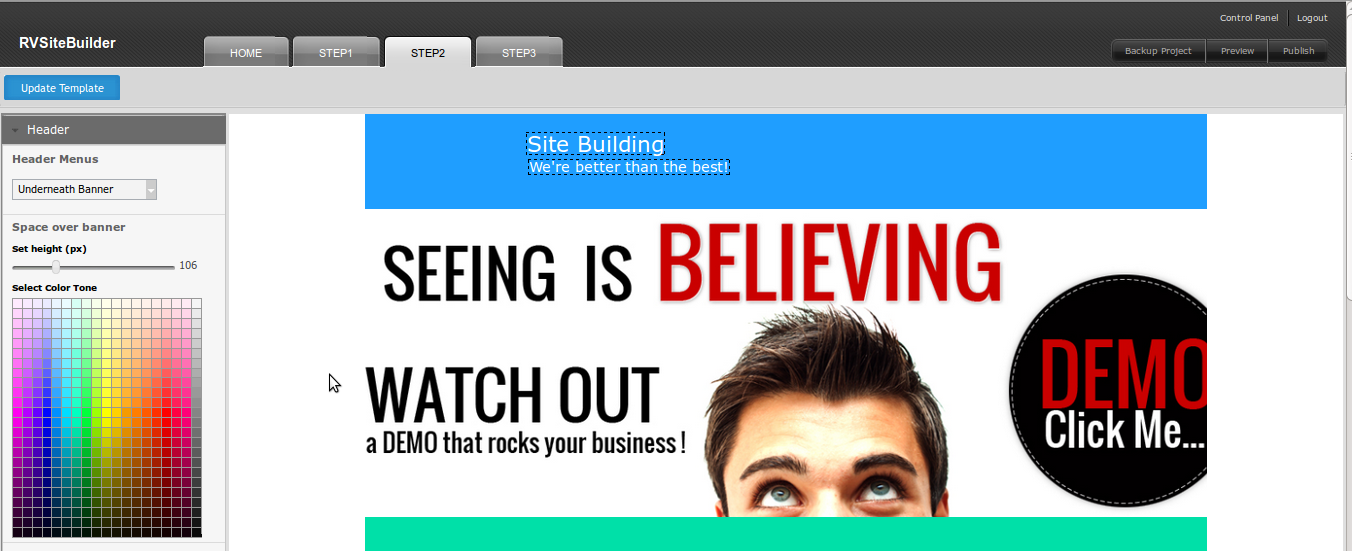
Remove Banner Image
You can remove image(s) on from your Banner in Step 2 as well.
1. Go to Step 2
2. On Header part, Slide Banner , click Delete icon
3. Click Update Template to save it.
