

To add or edit your custom text/code in to addition positions in your webpage. You can do the following.
1. In case you use Normal Template in your project.
You can edit them in Step 2 -> Site Addition, and choose position you want to edit.
The setting here in Step 2 will take effect to every page in your website.
If you don’t see Site Addition in your Step 2, then you’re using Responsive Template. Please go to No.2.
*Everything you did in Step 2 , please don't forget to save by "Update Template" button at the top of step2.
2. In case you use Responsive Template in your project.
You can edit it in Step 3 -> WYSIWYG of each page -> Layout Template.
This setting will take effect by page, not the entire website.
2.1 If your project was created with RVsitebuilder 5.2 , and got updated to RVsitebuilder 5.4. You will be with the Old WYSIWYG.
You need to put mouse on content area in order to open function "Layout Template" to edit.
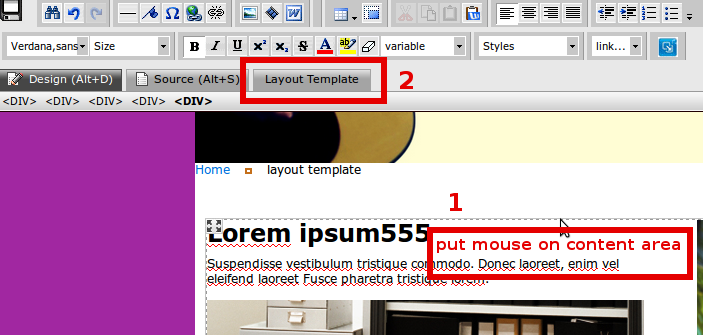
*This setting will take effect by page, not the entire website. If you want to have it every page, you’ll need to do in every page.
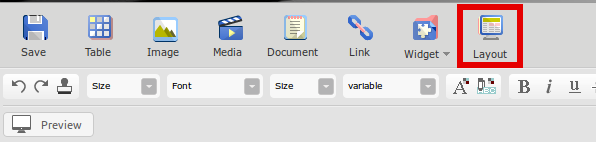
2.2 If your project is a fresh created in RVsitebuilder 5.4. You’ll get New WYSIWYG.
You can click on “Layout” feature in order to open Layout Template editor, and click the icon again to leave the Layout Template editor.
Then, the area to edit Top/Bottom/Left/Right will be appeared.
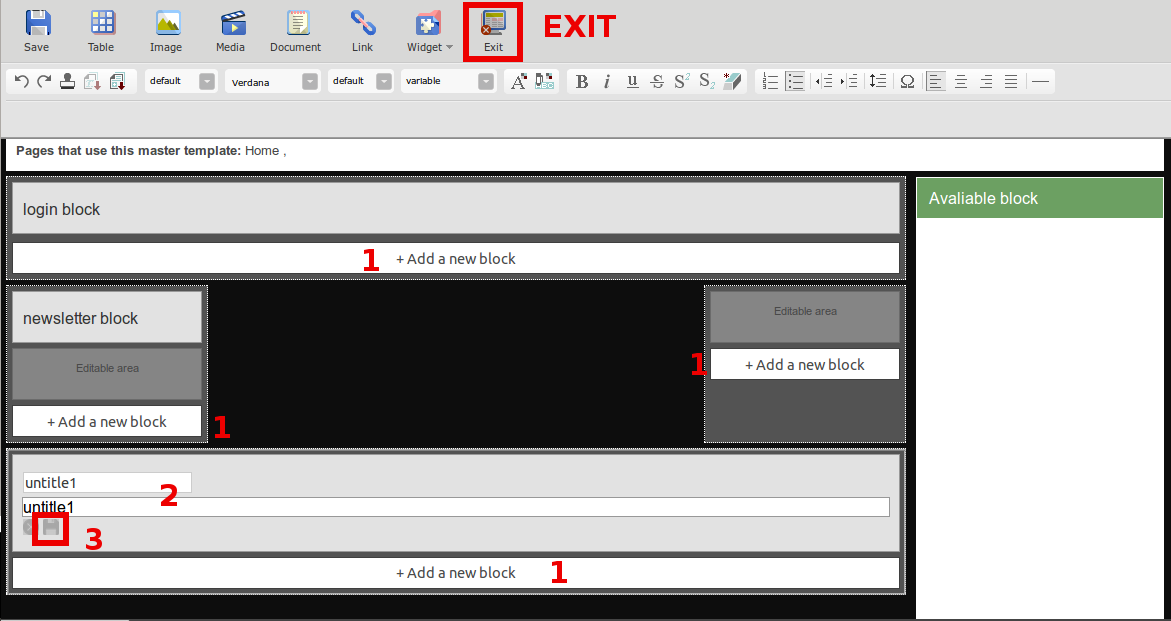
- Click “+ Add a new block” in the area you want to edit.
- Click “untitle1” to name and insert content to the destined area.
- Click “Save”.
- “Exit” from Site Wide editor.
*This setting will take effect by page, not the entire website. If you want to have it every page, you’ll need to do in every page.
