

How to embed a video on your page from Google Drive
by
RV Support
2025-11-25 08:01:35
Step 1 – Create a New Folder on your Google Drive
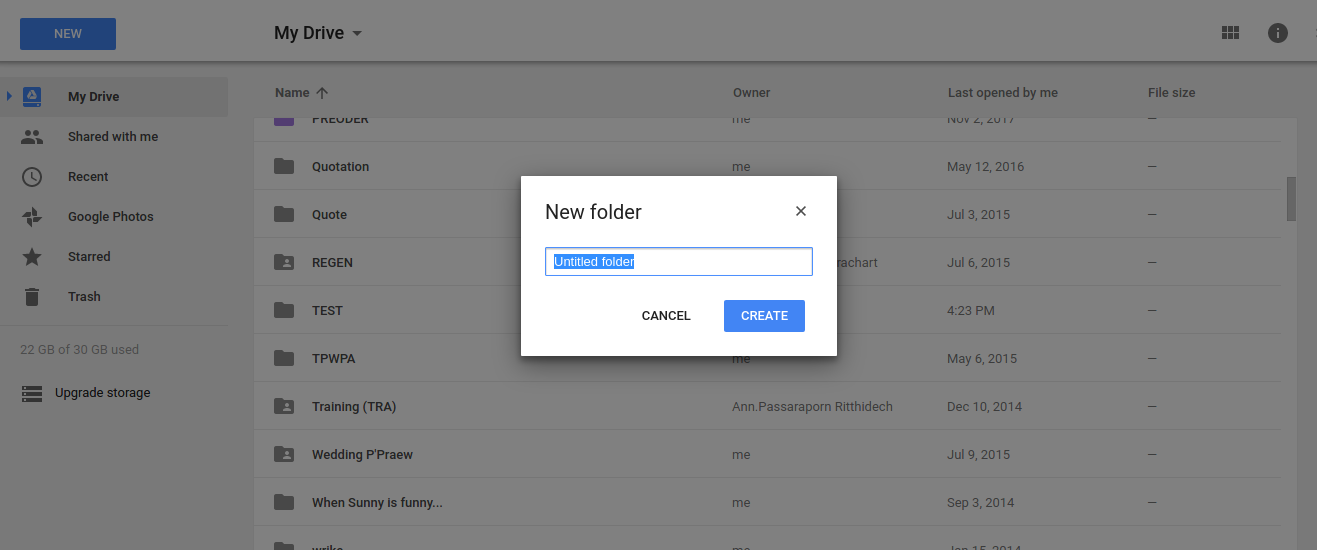
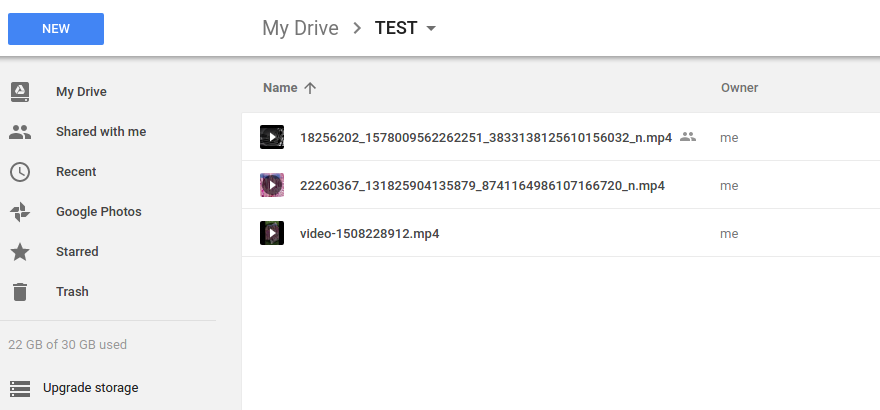
Step 2 – Drag and drop Videos to the folder Keep all your videos in one place so create a Videos folder. Here you can specify all the videos shareable i.e. the folder or just individual videos.
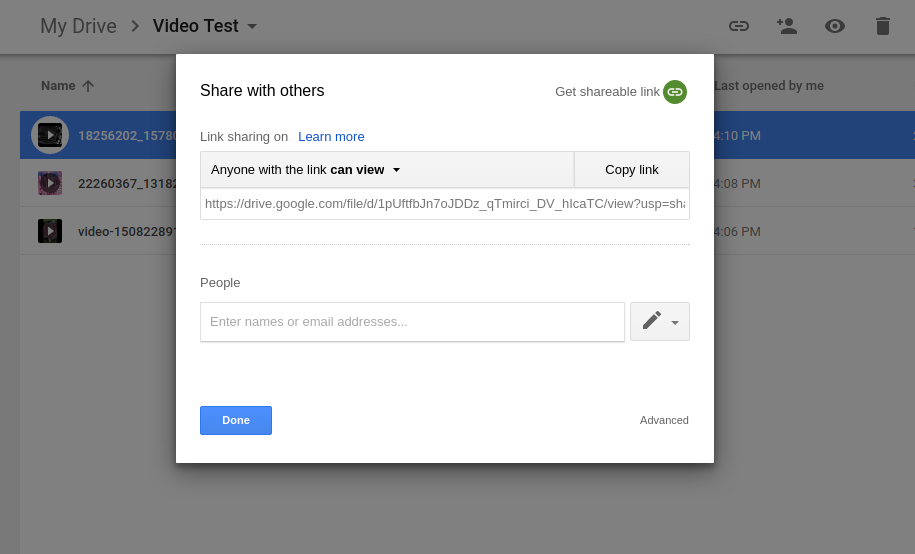
Step 3 – Click on ‘Get Shareable Link’ Hover over the video you want to add to the page and Right click on the video – select ‘Get Shareable Link’
Step 4 – Launch Video – Double clink Video Icon
Step 5 – Select the 3 vertical dots to open the new window.
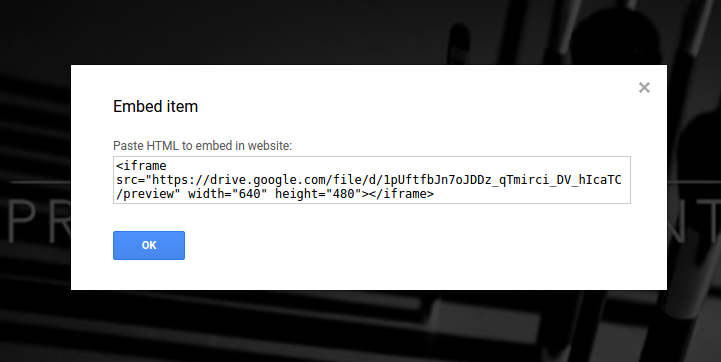
Select the 3 vertical dots again to Embed item and get the link.
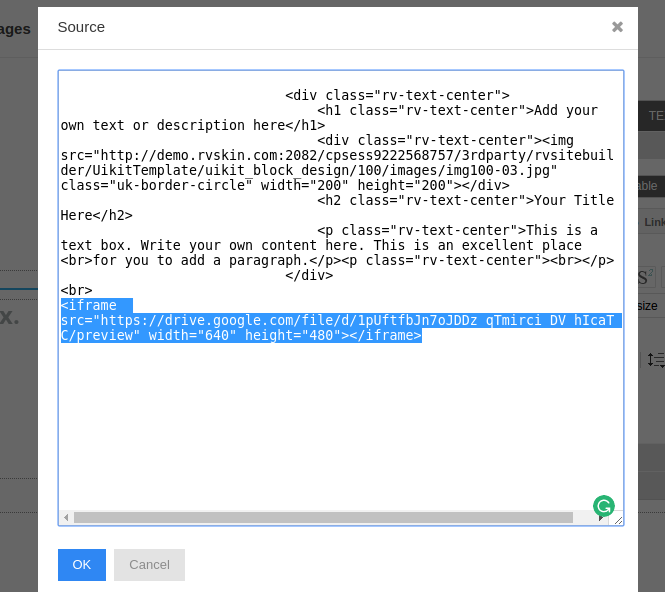
Step 6 – Paste embed link into your page Copy and paste this link into the code of your page.
Click on the section and click HTML mode button
Paste the code on the bottom and save.
Articals in this section
-
Make a Bookmark on your page
Updated on 2025-11-18 08:04:58
-
How to add a cookie and privacy banner on RVSB 6?
Updated on 2025-11-18 08:04:58
-
How to check your RVsitebuilder version?
Updated on 2025-11-18 08:04:58
-
How to select language on RVsitebuilder program
Updated on 2025-11-18 08:04:58
-
Added a feature for generating “Privacy Policy” page in RVsitebuilder version 6
Updated on 2025-11-18 08:04:58
-
Adding new page, Rearrange page name on Navigation
Updated on 2025-11-25 08:01:37
-
Adding Paypal widget
Updated on 2025-11-25 08:01:35
-
Adding Section
Updated on 2025-11-25 08:01:35
-
Copy an image from external
Updated on 2025-11-25 08:01:35
-
Create a website with RVsitebuilder 6
Updated on 2025-11-25 08:01:35
