

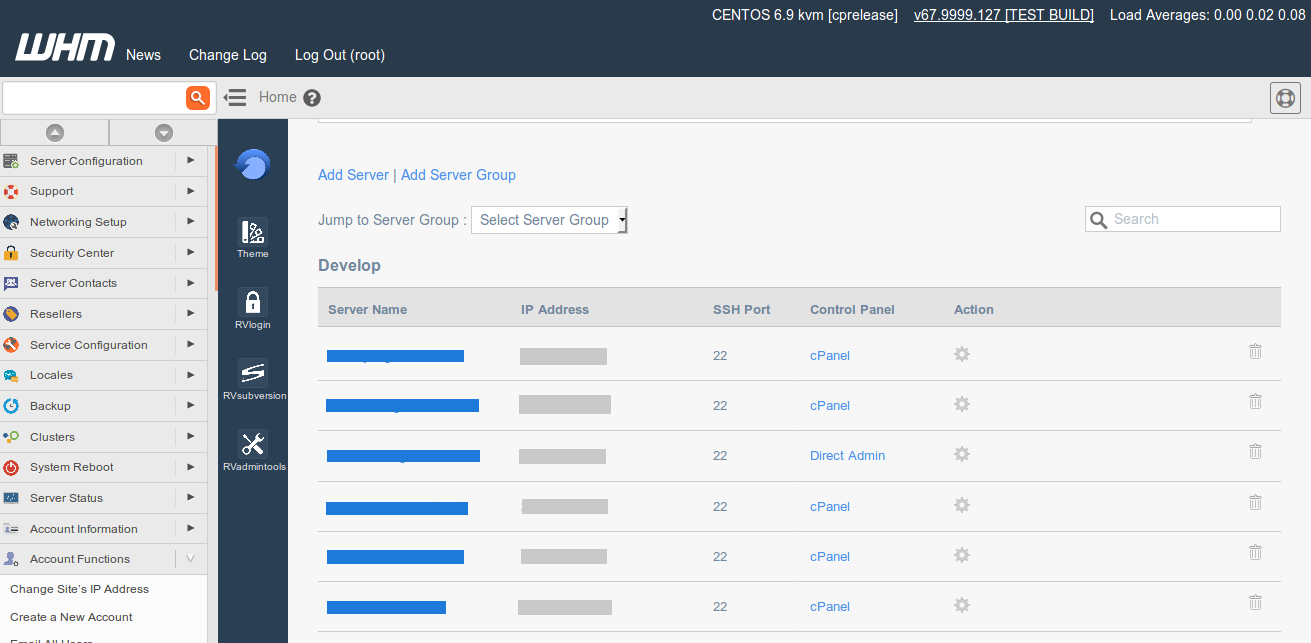
If this is your first time adding server in RVlogin Single sign-on, you’ll need to add Server Group first.
The server group will be the server list and server access control.
Go to WHM (root) -> Plugins -> RVglobalsoft Manager -> RVlogin Manager -> Server menu.

To add server group:
Go to WHM (root) -> Plugins -> RVglobalsoft Manager -> RVlogin Manager -> Server menu -> Add Server Group.
Create the server group name and its description.
Sample ::
Server Group Name: Developer One
Description: All developers in Server One

To add a server:
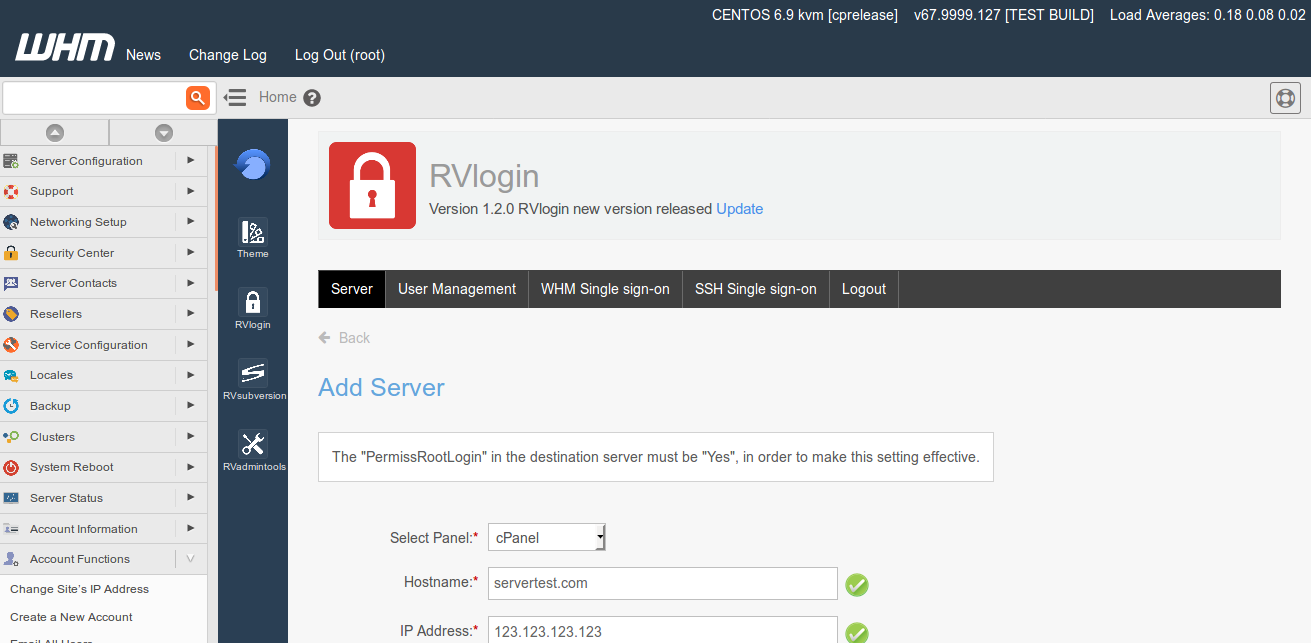
Go to WHM (root) -> Plugins -> RVglobalsoft Manager -> RVlogin Manager -> Server menu -> Add Server.
Fill the server information in the fields, and click Add.

Then back to “Server” page. The added servers and server groups will be displayed.
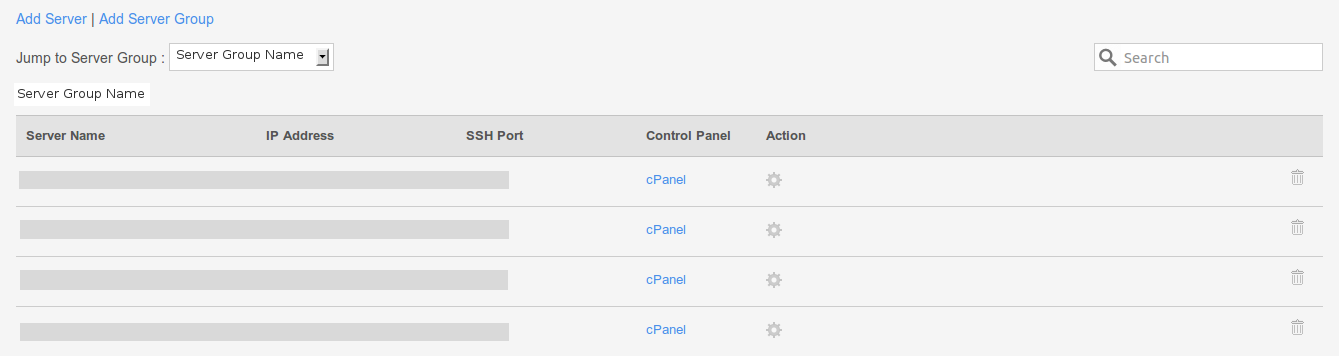
You can add Server and Server Group anytime you want.
