

Website Background
by
RV Support
2025-11-25 08:05:15
Website Background
You can choose to use a color or an image for website background as the following guide.
1. Website Background Color
In Step 2, click "Website Settings" -> Color Picker
Then select the color tone for your website background, and press "OK".

Then preview on the right hand

2. Website Background Image
In Step 2, click "Website Settings" -> “Advanced”

1) Click “Choose from Image Library”, and select an image from your computer.
2) Click on the uploaded image.
3) Set how your background image repeat.
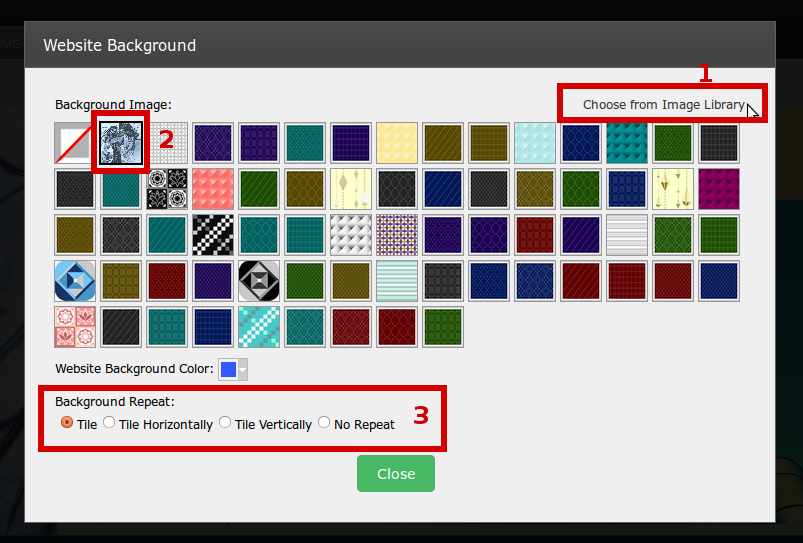
Then preview on the right hand.

Everything you did in Step 2 , please don't forget to save by "Update Template" button at the top of step2.
Articals in this section
-
RVSitebuilder 5.4 Release Notes
Updated on 2025-11-18 08:05:28
-
Add Custom Font
Updated on 2025-11-25 08:05:39
-
Add Google Maps with Widget feature in RVsitebuilder
Updated on 2025-11-25 08:05:15
-
Add your image(s) for website banner
Updated on 2025-11-25 08:05:15
-
Change Page Layout in WYSIWYG Editor
Updated on 2025-11-18 09:17:55
-
Copy and Paste Content/Code from the external source
Updated on 2025-11-25 08:05:15
-
Create a website with multi-language
Updated on 2025-11-25 08:05:15
-
Setup Contact Form Sender for Online Form, Contact Us in website
Updated on 2025-11-18 08:05:27
-
Set Website to display on Mobile
Updated on 2025-11-25 08:05:15
-
Set background color/image for Body(content) area
Updated on 2025-11-18 09:17:55
